Learning how to merge PDF files for free quickly and neatly is a common necessity in both professional and personal routines. Handling contracts split into separate addenda, scattered monthly invoices, or identity documents scanned page by page creates clutter and makes sending files via email inefficient.
In this practical guide, we show you the best solutions to merge PDF files for freecombining official web tools for urgent tasks and secure offline methods that safeguard your most sensitive data.
Table of Contents
Is It Safe to Merge PDF Files Using Online Tools?
Before uploading any document to a web-based platform, it is essential to evaluate its confidentiality level:
- Public or low-sensitivity documents: School assignments, informative brochures, user manuals, or articles can be processed without risk on cloud-based services.
- Confidential or private data: Bank agreements, payroll slips, medical records, or copies of identity documents should never be uploaded to unknown third-party servers. For these cases, offline (local) methods are the only secure approach.
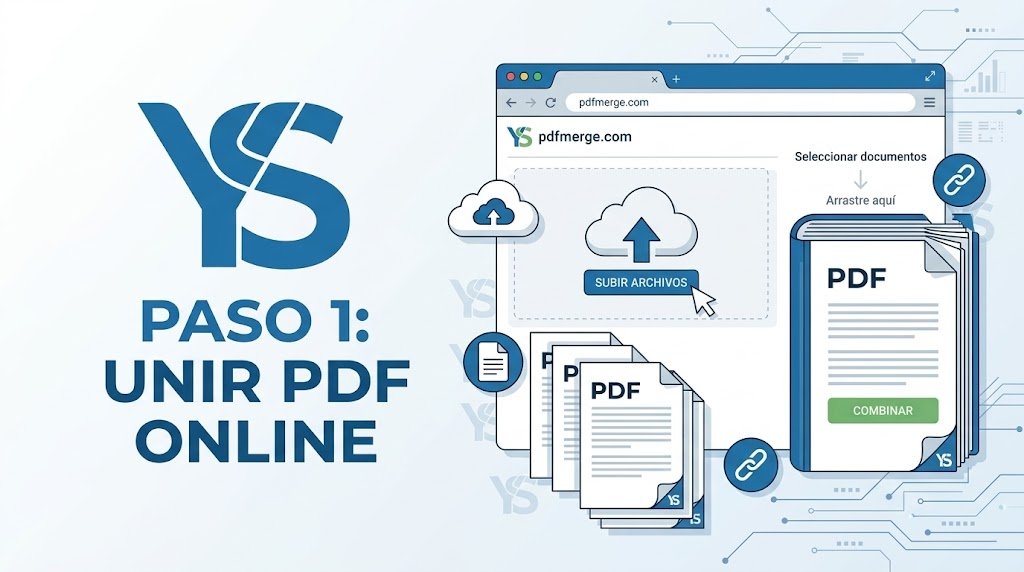
Method 1: Official Adobe Acrobat Web Tool (Fast and Watermark-Free)
The most reliable online option for combining documents is the official service provided by Adobe, the creators of the PDF standard. It allows you to merge pages while preserving the original typography and image quality.
- Go to the official Adobe Acrobat tool to combine PDF files.
- Click the Select files button or drag and drop your documents directly into the central browser area.
- Reorder the pages or files by dragging the thumbnails to your desired position.
- Click the Merge button at the top.
- Download the unified resulting document to your computer.
Method 2: Merge PDF Files on Mac with Preview (No Software Installation Required)
If you use macOS, the operating system includes a powerful built-in tool that allows you to merge PDF files in seconds—completely offline and 100% private:
- Open the first PDF document by double-clicking it in the native Preview app.
- In the top menu bar, click View > Thumbnails to display the left sidebar
- Select the page thumbnail after which you want to insert the next document.
- Open the Finder folder containing your other files and drag the second PDF directly into the thumbnails sidebar..
- Drop the file: all pages will integrate immediately in your chosen order.
- Go to File > Export as PDF, name your new file, and click Save.
Method 3: Offline Method on Windows with PDF24 Creator (Maximum Privacy)
Windows does not offer a native tool as direct as Preview for this task, but there is a reliable, free, ad-free desktop solution: PDF24 Creator. Because it runs locally on your PC, your data never leaves your computer.
- Download and install the desktop version from the official PDF24 website.
- Open the application and click the Merge PDF - module).
- Click Choose files and upload all documents you wish to combine.
- Drag the boxes for each file horizontally to determine the exact order. You can also expand individual pages and remove unnecessary ones.
- Click the Merge button at the bottom, then click Save.
This workflow is highly recommended for administration departments and businesses that handle information subject to strict data protection regulations.
Method 4: Combine PDF Documents on Mobile (Android and iOS)
If you need to send a single merged file directly from your smartphone:
- On iPhone / iPad (Files App): Open the Files app, navigate to the folder where your documents are stored, tap the options button (the three dots at the top), select Select, tap each PDF you want to bundle, and tap the lower-right menu to choose Create PDF. The system will instantly generate a merged copy.
- On Android: The cleanest method without installing ad-heavy apps is to open your mobile browser and access the Adobe web tool explained in Method 1, or use trusted apps like Google Drive to scan and compile documents in a single step.
Summary and Best Practices Before Sharing Your Merged PDF
Before emailing your file or submitting it to official portals, keep these two recommendations in mind:
- Check the final file size: Merging several documents with high-resolution images can exceed the typical 20–25 MB email attachment limit. If this happens, apply a PDF compression tool after merging.
- Clean up source data: If your documents originate from exported reports or spreadsheets, make sure the information is audited beforehand. For example, check out our guide on how to remove duplicates in Excel to verify your lists are clean before printing or exporting to PDF.
Which Method Should You Use?
- For quick tasks with non-sensitive data: Adobe Acrobat Web (Method 1).
- If you work on macOS: Preview app (Method 2).
- For confidential documents or business environments on Windows: PDF24 Creator (Method 3).
- For quick fixes on the go: The Files app on iPhone or mobile browser (Method 4).
Pingback: 3 Métodos para comparar dos columnas en Excel: Guía rápida
Pingback: 3 Formas de convertir un PDF protegido a Word: Guía rápida
Pingback: Reduce PDF File Size Without Losing Quality: 3 Key Ways
Pingback: Find Matching Values in Two Excel Lists: 3 Key Ways
Pingback: How to Sign a PDF Digitally Without Printing: 3 Top Ways
Pingback: Edit Text in a PDF Without Software: 3 Top Solutions
Pingback: Free Alternatives to Adobe Acrobat: 3 Top Suites in 2026