Knowing how to edit text in a PDF without software installed is an essential resource when you need to fix a last-minute typo, update a date, or adjust an amount without paying for expensive professional licenses. Although the PDF format was originally conceived to preserve fixed document layouts, today there are fast and free methods to cleanly modify its content.
If you need to formalize your document after editing, check out our guide on how to sign a PDF digitally without printing to stamp your signature with full legal validity. On the other hand, if the resulting file is too large to attach via email, learn how to reduce PDF file size without losing quality before sending it.
Below, we detail the 3 best alternatives to modify text in PDF files directly from your browser or using tools you already have on your computer.
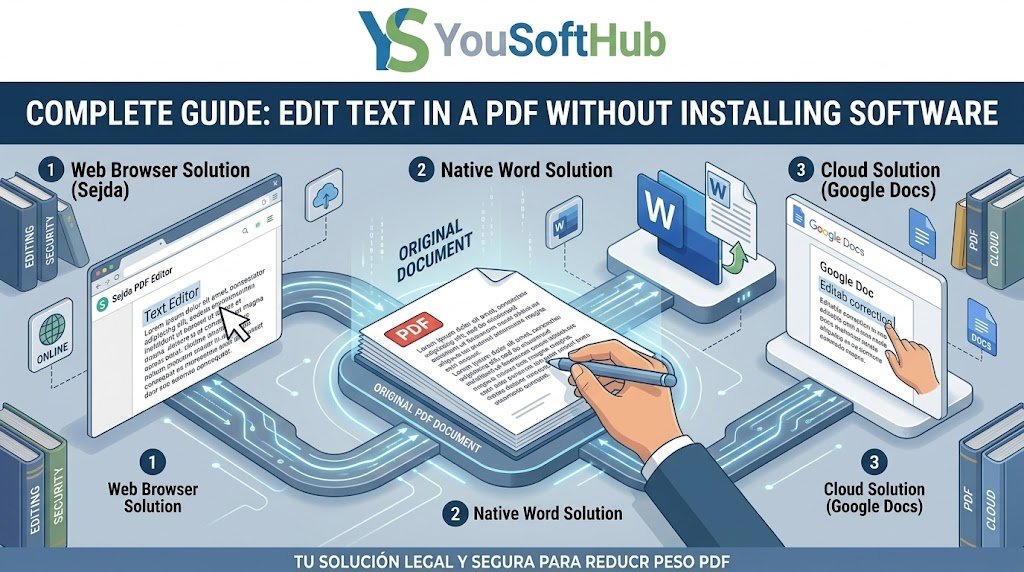
Table of Contents
1. Edit Text Online with Sejda PDF Editor
For those looking to edit text in a PDF without software directly from their web browser, Sejda is one of the few platforms that allows editing the existing original typography instead of merely covering words with white boxes:
- Go to the web editor at Sejda PDF Editor and click on Upload PDF file
- Select the Text tool in the top toolbar.
- Click on the sentence or word you want to modify; you will see that the text becomes instantly editable while respecting the original font.
- Type your corrections and click the green button at the bottom: Apply changes.
- Download your newly updated PDF file without watermarks.
To learn more about document privacy and cloud encryption standards, consult the official processing guidelines on the official Sejda PDF Editor portal. portal oficial de Sejda PDF Editor.
2. Open and Edit with Native Microsoft Word
If you use an office computer running Windows or macOS, you do not need to install additional PDF editing software. Microsoft Word natively includes a powerful converter that reconstructs the document for immediate editing:
- Open a blank Microsoft Word document and click File > Open. File > Open.
- Browse and select your PDF file.
- A notification prompt will state that Word will convert the PDF into an editable document; click OK.
- Modify paragraphs, correct typos, or add new information just like in any standard text document.
- To re-export the file as a PDF, go to File > Save As and select PDF (*.pdf) from the file type dropdown menu.
If your source document has password restrictions against copying or editing, check out our tutorial on how to convert protected PDF to Word for free to unlock the content first.
3. Use Google Docs with Cloud OCR
If you work on a Chromebook, a mobile device, or prefer cloud workflows without desktop applications, the Google Drive ecosystem offers an accessible path to edit text in a PDF without software:
- Upload the PDF to your personal Google Drive storage.
- Right-click the uploaded file, go to Open with, and select Google Docs.
- Google's optical character recognition (OCR) engine will extract and render the pages as editable text in a new tab.
- Apply your corrections directly to the text.
- Once finished, go to File > Download > PDF Document (.pdf) to save it back to your computer.
Tips to Avoid Breaking Layouts When Editing a PDF
When using techniques to edit text in a PDF without software, it is essential to consider certain technical constraints of the format:
- Length of modified text: If you replace a short phrase with a significantly longer paragraph, the remaining text may shift and misalign footers or nearby images. Try to keep adjustments around the same length.
- Non-standard fonts: If the original document relies on proprietary typography or vector assets, online editors will substitute them with standard typefaces like Arial or Helvetica if the original font is not embedded.
- Merging documents: If you are modifying a single page that belongs to a larger dossier, reassemble the whole set with our guide to merge PDF files for free without software.
Mastering how to edit text in a PDF without software allows you to solve urgent document revisions within minutes while preserving a clean, professional finish.
Related productivity guides
- If you work with large grids and tables, learn how to freeze panes in Excel row and column to audit your data with ease.
- Protect your calculation templates and business formulas by following our guide to lock cells in Excel with password.
Pingback: Free Alternatives to Adobe Acrobat: 3 Top Suites in 2026