Learning how to digitally sign a PDF with a digital certificate is an essential skill for any professional, business owner, or individual handling contracts, official invoices, or administrative submissions. For years, the standard approach involved printing documents onto paper, signing them manually with a pen, and scanning them back into the computer—an inefficient habit that lacks genuine cryptographic security.
Other users opt to paste a flat PNG image of their handwritten signature onto the page. This method provides no authentic legal validity, as anyone can modify the text of the PDF afterward without leaving an audit trail. In contrast, cryptographic signatures backed by qualified digital certificates verify the signer's identity and preserve absolute content integrity. In this practical guide, you will learn how to digitally sign a PDF with a digital certificate completely free of charge, running entirely on your local machine without exposing confidential files to third-party web servers.
If you also prepare financial summaries or quarterly balances that eventually need to be converted and officially signed, check out our tutorial on how to consolidate Excel files into a single table without macros before exporting your final reports.
Table of Contents
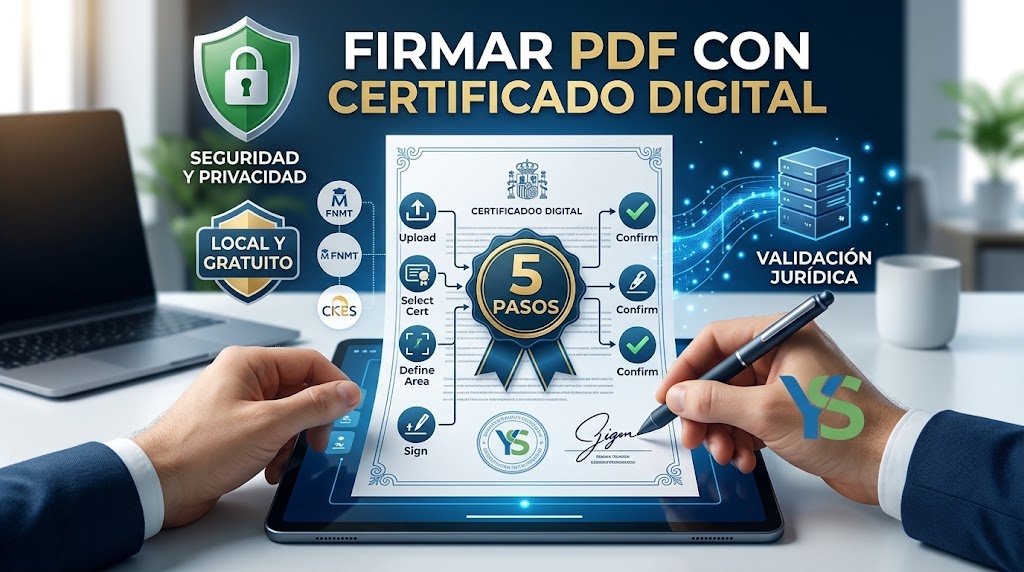
Why Is Native Digital Certificate PDF Signing Essential?
Choosing to digitally sign a PDF with a digital certificate locally rather than relying on unverified online converters offers three decisive technical advantages
- Identity Authentication: A certificate issued by an accredited Certification Authority binds the signature to a verified individual or legal entity.
- Tamper-Proof Integrity: Any modification made to the PDF file after applying the signature immediately invalidates the security seal and triggers a warning in all standard viewers.
- Strict Data Privacy: Executing the signing procedure locally on your computer ensures that sensitive contracts, tax records, and client records never leave your hard drive or touch external cloud servers.
Key Prerequisites Before Getting Started
To digitally sign a PDF with a digital certificate without running into configuration hurdles, confirm you have the following items ready on your machine:
- A Valid Personal or Corporate Digital Certificate: Installed inside your operating system's native certificate store (Windows, macOS, or Linux) or accessible via an authenticated smart card / cryptographic token
- A Desktop PDF Viewer: We will use Adobe Acrobat Reader, the free industry standard, or public administration utilities such as AutoFirma.
Step-by-Step: How to Sign a PDF with a Digital Certificate in Adobe Acrobat Reader
Step 1: Open the Document in Adobe Acrobat Reader
Right-click the target PDF file, select Open with, and choose Adobe Acrobat Reader. Avoid opening it directly in a web browser (such as Chrome, Edge, or Firefox), as browser-based viewers generally lack the cryptographic interfaces required to apply local certificate signatures.
Step 2: Access the Certificates Tool Panel
Inside Adobe Reader, click the Tools tab near the top (or open the right-hand utility sidebar). Scroll down to locate the Certificates icon and click Open. A dedicated toolbar for managing electronic signatures will appear directly above your PDF view. You can review full compliance specifications directly on the official Adobe certificate-based signatures documentation.
Step 3: Select the Digitally Sign Option
From the newly displayed Certificates toolbar, click the Digitally Sign button. Your cursor will turn into crosshairs, allowing you to draw the bounding box where your visual signature block will be placed.
Step 4: Draw the Signature Field and Pick Your Certificate
Click and drag across the area on the document where you want the signature to appear (typically at the bottom of the final page or above the signature line). Once you release the click, a pop-up window will automatically list all valid certificates installed on your machine:
- Select your designated digital certificate from the list.
- Click Continue.
- Inspect the preview showing your identity information, timestamp, and optional issuer details. You can optionally tick the lock box to restrict subsequent edits.
Step 5: Save and Verify the Signed PDF
Click the Sign button. The program will prompt you to save a new copy of the file (e.g., Contract_Signed.pdf). After saving, a green or blue notification banner will appear at the top confirming: "Signed and all signatures are valid." You have successfully managed to digitally sign a PDF with a digital certificate with full legal standing.
Official Alternative: Batch Signing with AutoFirma
For individuals and companies submitting filings to Spanish and European public administration portals, the open utility AutoFirma makes it straightforward to digitally sign a PDF with a digital certificate. Launch AutoFirma, drag your file into the window, click Sign, and choose your certificate. The resulting file adheres strictly to the PAdES (PDF Advanced Electronic Signatures) standard, universally accepted across electronic registries and legal institutions.
Troubleshooting Common Errors and Questions
Adobe shows "At least one signature has problems": In many cases, Adobe Reader has not refreshed its European Union Trusted Lists (EUTL) or Adobe Approved Trust List (AATL). To fix this, navigate to Edit > Preferences > Trust Manager and click Update under the automatic trust list updates section.
My certificate does not appear in the selection list: Verify that the certificate has not expired and that both the public certificate and private key are properly imported into your local system store. If you are using a physical smart card or cryptographic USB token, verify that your reader drivers are up to date and connected properly.
Once your digital documents are signed and archived, if your team is looking to refine collaborative workflows across departments, explore our guide on Excel vs. Google Sheets: Key Differences and Use Cases to pick the ideal platform for your operational spreadsheets.
Pingback: Cómo Unir PDF Gratis en 5 Pasos: Guía Rápida y sin Riesgos