Analyzing the key differences in Excel vs Google Sheets is an essential step for any team or professional aiming to streamline administrative workflows. While Microsoft Excel remains the undisputed benchmark for analytical power and massive data handling, Google Sheets has transformed operational agility through its native cloud environment and seamless real-time teamwork.
Regardless of which spreadsheet tool you choose, structuring your workbooks effectively requires good operational habits. If you manage large data files, learn how to freeze panes in Excel row and column to keep headers visible at all times, or follow our guide on how to lock cells in Excel with password to protect critical formulas against accidental changes.
Below, we break down the key differences in Excel vs Google Sheets across three crucial areas: processing capacity, live collaboration, and automation ecosystems.
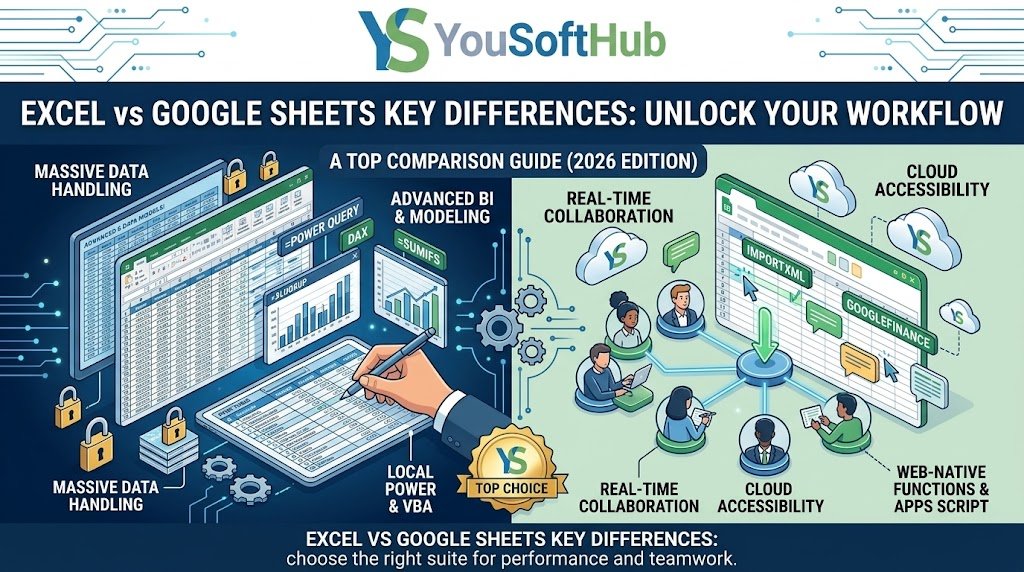
Table of Contents
1. Data Capacity and Performance with Massive Workbooks
One of the most critical factors when examining Excel vs Google Sheets key differences lies in maximum cell capacity and raw calculation speed:
- Microsoft Excel: Supports up to 1,048,576 rows by 16,384 columns per worksheet. Its local calculation engine utilizes your computer's CPU and RAM, allowing you to manipulate workbooks with hundreds of thousands of records without interface lag.
- Google Sheets: Handles up to 10 million total cells per workbook. While generous, once you exceed tens of thousands of rows combined with heavy array formulas, web browser rendering and calculation latency can noticeably increase.
- Data cleaning: If your spreadsheets import extensive databases containing duplicate entries, check out how to find and remove duplicates in spreadsheets to speed up workbook performance across both platforms.
To inspect official numerical limits and technical specifications, visit the technical documentation for Excel specifications and limits on Microsoft Support.
2. Real-Time Collaboration and Cloud Accessibility
Collaborative workflows represent another fundamental divide in Excel vs Google Sheets key differences:
- Google Sheets: Built from the ground up for web browsers, it enables dozens of contributors to simultaneously edit cells, leave threaded comments with user tags (@), and roll back changes using a reliable version history.
- Microsoft Excel: While Excel for Microsoft 365 supports co-authoring via OneDrive and SharePoint, workflows can experience synchronization delays or locked sheets when several team members edit complex desktop macros or external database links concurrently.
- Zero-installation mobility: Sheets runs out of the box on any device without dedicated desktop apps. If your workplace relies on browser-first workflows, complement it by checking how to use free alternatives to Adobe Acrobat to handle business contracts with no software licenses.
3. Advanced Formulas, Data Modeling, and Automation
When assessing Excel vs Google Sheets key differences in analytical modeling and process automation, each suite offers distinct strengths:
- Power Query and Pivot Tables in Excel: Excel leads business intelligence operations thanks to Power Query, Power Pivot, and the DAX language for complex relational data modeling.
- Web-native functions in Sheets: Google Sheets features exclusive built-in formulas such as
GOOGLEFINANCEfor real-time market data orIMPORTXMLto pull web page information directly into your grid. - VBA vs Apps Script: Excel relies on Visual Basic for Applications (VBA) for offline workstation macros, whereas Google Sheets runs Google Apps Script (cloud-based JavaScript), ideal for connecting sheets with Gmail, Forms, and Google Calendar.
Comparison Table: Excel vs Google Sheets Key Differences
Review this technical summary to decide which spreadsheet solution fits your ongoing project demands:
| Feature | Microsoft Excel | Google Sheets |
|---|---|---|
| Data Limit | 1,048,576 rows per worksheet | 10 million total cells per workbook |
| Team Collaboration | Good (via Microsoft 365 cloud) | Native, seamless real-time co-authoring |
| Data Modeling & BI | Advanced Power Query & Power Pivot | Standard pivot tables and basic charts |
| Automation Engine | VBA / Desktop Macros | Google Apps Script (Cloud JavaScript) |
| Pricing | Paid (Subscription or standalone license) | Free (with a standard Google account) |
Understanding these key differences in Excel vs Google Sheets will allow you to leverage Google's web-native speed for shared tracking sheets and quick client forms, while reserving Excel's technical horsepower for financial audits, massive datasets, and high-volume corporate reporting.
Related productivity guides
- Need to cross-check records across tables? Learn how to find matching values in two Excel lists step by step.
- Cleaning unstructured contact directories? Check our guide to split first and last names in Excel and Google Sheets into separate columns.