Learning how to compare two columns in Excel when datasets are stored across separate sheets is essential for auditing budgets, reconciling inventory, or reviewing client lists. Performing this check manually row by row is not only time-consuming, but also increases the risk of critical human errors.
If you frequently work with unorganized datasets, remember to clean your records before cross-referencing; you can check out our guides on how to remove duplicates in Excel and ow to split first and last names in spreadsheets to prepare your data before analyzing it.
Below are 3 fast, visual, and effective methods to compare two columns across different worksheets without hassle.
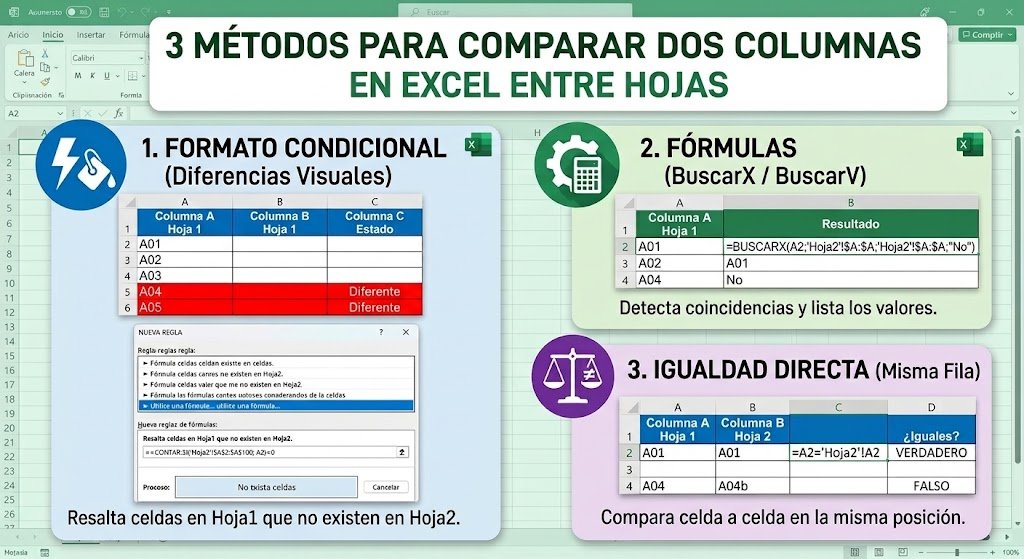
Table of Contents
1. Highlight differences when comparing two columns in Excel with conditional formatting
If you want Excel to mark the cells from the primary list that do not appear in the second sheet with a distinct color, conditional formatting is the fastest method.
- Open your workbook and go to Sheet 1, where your main audit list is located.
- Select the range of data you want to audit (for example, from
A2toA100). - In the top ribbon, go to the tab Home and click Conditional Formatting > New Rule.
- Select the option: «Use a formula to determine which cells to format».
- In the formula field, enter the following expression:
=COUNTIF('Sheet2'!$A$2:$A$100, A2)=0(This rule checks each cell in Sheet 1, and if it finds 0 matches in column A of Sheet 2, it applies the formatting). - Click the Formatbutton, navigate to the Filltab, choose a soft accent color (such as light red or yellow), and click OK.
- Click OKagain. All rows missing from the second sheet will be highlighted instantly.
2. Use XLOOKUP or VLOOKUP in a helper column (To generate reports)
A popular approach to comparing two columns in Excel and generate an organized report is using lookup formulas.
- In Sheet 1, click on the empty cell next to your first record (for example,
B2). - If you are using Microsoft 365 or modern versions of Excel, enter the function
XLOOKUP:=IF(ISNA(XLOOKUP(A2, 'Sheet2'!$A$2:$A$100, 'Sheet2'!$A$2:$A$100)), "Not found", "Match") - f you are using legacy versions of Excel (2019 or earlier), use the traditional function
VLOOKUP:=IF(ISERROR(VLOOKUP(A2, 'Sheet2'!$A$2:$A$100, 1, FALSE)), "Not found", "Match") - Double-click the lower-right corner of the cell to drag the formula down the entire column.
- Apply a filter (
Ctrl + Mayús + L) on the header row and select only rows marked as Not found to review discrepancies.
3. Compare records row-by-row across two sheets
f your lists already share the exact same row order, the process to comparing two columns in Excel reduces to a simple logical test:
- In an empty column on Sheet 1, enter this direct equality formula:
=A2='Sheet2'!A2 - Excel will return TRUE if both fields are identical or FALSE if there is any difference in characters, numbers, or spaces.
- If you prefer a cleaner output, wrap it in an IF condition:
=IF(A2='Sheet2'!A2, "Match", "Different")
Tips to avoid false errors when cross-referencing data
- Hidden spaces: A very common issue occurs when a cell has a trailing blank space not visible at first glance. Clean your values in a helper column using the formula
=TRIM(A2). - Format mismatches: Ensure both columns share identical cell formats. If one sheet stores codes as Text and the other as Number, Excel will treat them as non-matching values.
- When you finish comparing two columns in Excel, double-check that no hidden filters remain active on either worksheet.
Related productivity guides
If you work with exported reports you need to how to merge PDF files for free without software in seconds.
Got duplicate entries after comparing sheets? Follow our guide to remove duplicate rows in spreadsheets.
Pingback: Reduce PDF File Size Without Losing Quality: 3 Key Ways
Pingback: 3 Formas de convertir un PDF protegido a Word: Guía rápida