Learning how to remove duplicates in Excel and Google Sheets is one of the most critical skills when managing professional spreadsheets. Across customer databases, product inventories, and sales logs, redundant entries skew reporting, corrupt core business metrics, and waste countless hours of manual data cleanup.
In this step-by-step tutorial, we break down the most efficient ways to identify, highlight, and remove duplicates in Excel, alongside standard workflows for Google Sheets to safeguard the integrity of your datasets.
Table of Contents
Why Do Duplicate Entries Appear in Your Spreadsheets?
Before sanitizing any spreadsheet, understanding how redundant data originates helps prevent recurring issues down the line. Common causes include:
- Multiple imports: Merging CSV files or spreadsheets exported from different billing software or CRM platforms.
- Manual entry by multiple users: Different team members logging the same lead, sale, or customer without checking existing records.
- Typographical discrepancies: Slight variations such as stray trailing spaces or mismatched letter cases that prevent automatic matching.
Method 1: Highlight Duplicate Values with Conditional Formatting in Excel
Before you remove duplicates in Excelhighlighting repeated records helps you audit exactly which rows will be affected:
- Select your dataset or column: Highlight the cell range where you suspect recurring entries.
- Access Conditional Formatting: Go to the Home tab Home, click Conditional Formatting > Highlight Cells Rules > Duplicate Values.
- Choose the alert style: Keep the dropdown set to Duplicate and pick your preferred formatting style (e.g., Light Red Fill with Dark Red Text).
- Click OK: Matching entries will be flagged instantly, allowing you to review anomalies before applying permanent deletions.
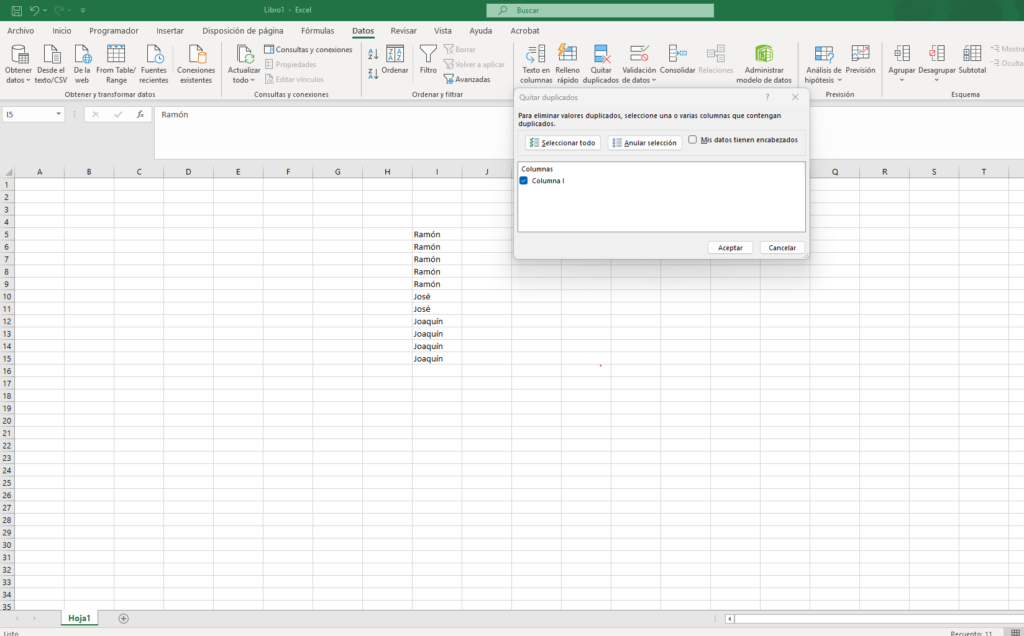
Method 2: Native Tool to Remove Duplicates in Excel
When you need a swift, direct cleanup, the built-in feature is the quickest route:
- Click any cell inside your data table.
- Navigate to the Data tab on the ribbon.
- In the Data Toolssection, click Remove Duplicates.
- A configuration dialog will appear listing all columns:
- Check the box labeled My data has headers if your first row contains column titles.
- Define matching criteria: Selecting every column ensures only 100% identical rows are purged. Selecting just a single identifier (such as an Email address or ID number) deletes any subsequent row sharing that value, retaining only the first occurrence.
- Click OK. Excel displays a confirmation prompt detailing how many duplicate values were removed and how many unique records remain.
Golden Rule: Before using the mass deletion tool, always make a backup or duplicate your worksheet. This operation permanently alters the underlying dataset.
Method 3: How to Remove Duplicates in Google Sheets
Much like when you remove duplicates in Excel, Google Sheets provides a streamlined native cleanup assistant:
- Highlight the cells or columns you wish to clean up.
- From the top menu, go to Data > Data cleanup > Remove Duplicates.
- Specify whether the dataset includes a header row and check the specific columns to evaluate.
- Click the blue Remove Duplicates button to complete the process.
Method 4: Extract Unique Records with Formulas (Non-Destructive)
If you need a dynamic, automated solution to remove duplicates in Excelthe =UNIQUE formula is the most efficient choice.
Both in Google Sheets and in modern versions of Excel (Microsoft 365 and Excel 2021 onwards), use the dynamic array formula: UNIQUE:
=UNIQUE(A2:A100)
Method 5: Filter Duplicates Using Advanced Filter (Copy to Another Location)
If you are running a legacy desktop version of Excel without the =UNIQUEfunction, the Advanced Filter tool extracts clean lists without modifying your source data:
Select your data: Click the table or column containing redundant entries.
Open Advanced Filter: Navigate to the Data tab and, in the Sort & Filtersection, click Advanced.
Configure the filter parameters:
Select Copy to another location.
In the Copy tofield, click and select the destination cell where your clean list should begin (e.g., an empty column like
C1).Check the essential box: Unique records only.
Click OK: Excel generates a pristine copy of your list instantly, stripping out duplicate rows while keeping the raw data untouched.
Knowing how to remove duplicates in Excel will save you hours of work and prevent critical reporting errors.
Summary: Which Method Should You Choose?
- To inspect rows before deletion: Use Conditional Formatting (Method 1).
- To sanitize static databases quickly: Use the built-in Remove Duplicates tool (Methods 2 & 3).
- To automate tables receiving ongoing entries: Use the dynamic
=UNIQUEfunction (Method 4). - For legacy Excel versions lacking modern formulas: Rely on the Advanced Filter (Method 5).
You can complement this data-cleaning workflow by learning how to split first and last names in Excel and Google Sheets.
Pingback: 3 Métodos para comparar dos columnas en Excel: Guía rápida
Pingback: Reduce PDF File Size Without Losing Quality: 3 Key Ways
Pingback: How to Sign a PDF Digitally Without Printing: 3 Top Ways