If you need to split first and last names in a customer or employee database, doing it manually cell by cell is a waste of time. In this complete guide, you will learn how to split first and last names into separate columns in both Microsoft Excel and Google Sheets using quick, straightforward methods.
Both Excel and Google Sheets feature built-in tools to divide text into columns within seconds, without installing add-ons or running advanced macros.
Method 1: How to Split First and Last Names in Excel with Text to Columns
This is the fastest method when working with static data in Microsoft Excel.
- Insert blank columns to the right: Right-click the column next to your names and select insertLeave at least two blank columns to prevent last names from overwriting existing data.
- Select your data: Highlight all cells containing the names you want to split.
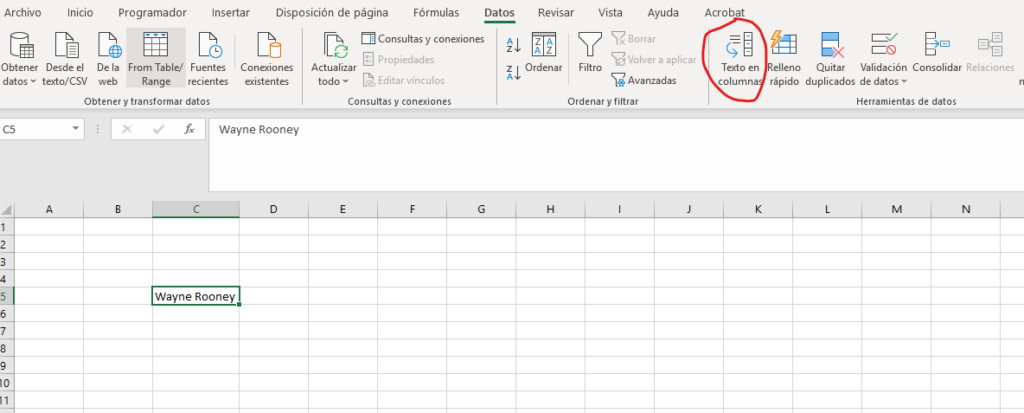
- Open the split tool: In the top ribbon, go to the tab Data and click Text to Text to Columns.
- Choose the split format:
- Select Delimited and click Next.
- In the delimiters screen, uncheck all options and select only Space.
- Complete the process: Click Finish. The first name will remain in the original column and the last names will populate the adjacent columns.
Method 2: Use Flash Fill in Excel (The Smartest Way)
Flash Fill automatically detects patterns without needing formulas or complex wizards.
- Add clean target columns next to your list and label them "First Name" and "Last Name".
- In the first empty cell under "First Name", manually type the first name of the person in that row.
- Click
Enter, pres the sortcut Ctrl + E (go to the Data > click Flash Fill. Excel will instantly populate the rest of the column. - Repeat the exact same step in the "Last Name"column to complete your list and go back to press Ctrl + E.
Method 3: Split Text to Columns in Google Sheets
In Google Sheets, the process to split first and last names is straightforward and requires no additional formulas:
- Make sure you have at least two empty columns to the right of your list.
- Select the cells containing the full names.
- Go to the top menu Data and select Split text to columns.
- A small floating label named Separatorwill appear next to your selection. Click the dropdown and select Space (or leave it as Detect automatically).
- The data will immediately distribute across the adjacent columns.
Method 4: Split Names Using Formulas (For Dynamic Data)
If you want to automate this task for new entries, you can split first and last names using dynamic functions.
In Google Sheets:
Use the SPLITfunction. If the full name is in cell A2, type in B2:=SPLIT(A2; " ")
The formula will split the content into as many adjacent cells as words in the name.
In Excel (Modern Versions):
Use the TEXTSPLITfunction. If the name is in A2, enter in B2:=TEXTSPLIT(A2, " ")
Troubleshooting Common Issues
- Compound names (e.g., John Paul Smith): Both the Text to Columns tool and splitting formulas divide every single space into a separate column. In these cases, review entries with multi-word first or last names to manually unify them in their respective column.
- Accidental spaces: Copied data from the web often contains leading or trailing spaces. To clean them before splitting, use the
=TRIM(A2)--function beforehand.
Check out more tutorials on YouSoftHub!
Pingback: Cómo eliminar duplicados en Excel: 5 Métodos Fáciles y Perfectos
Pingback: 3 Métodos para comparar dos columnas en Excel: Guía rápida
Pingback: Find Matching Values in Two Excel Lists: 3 Key Ways